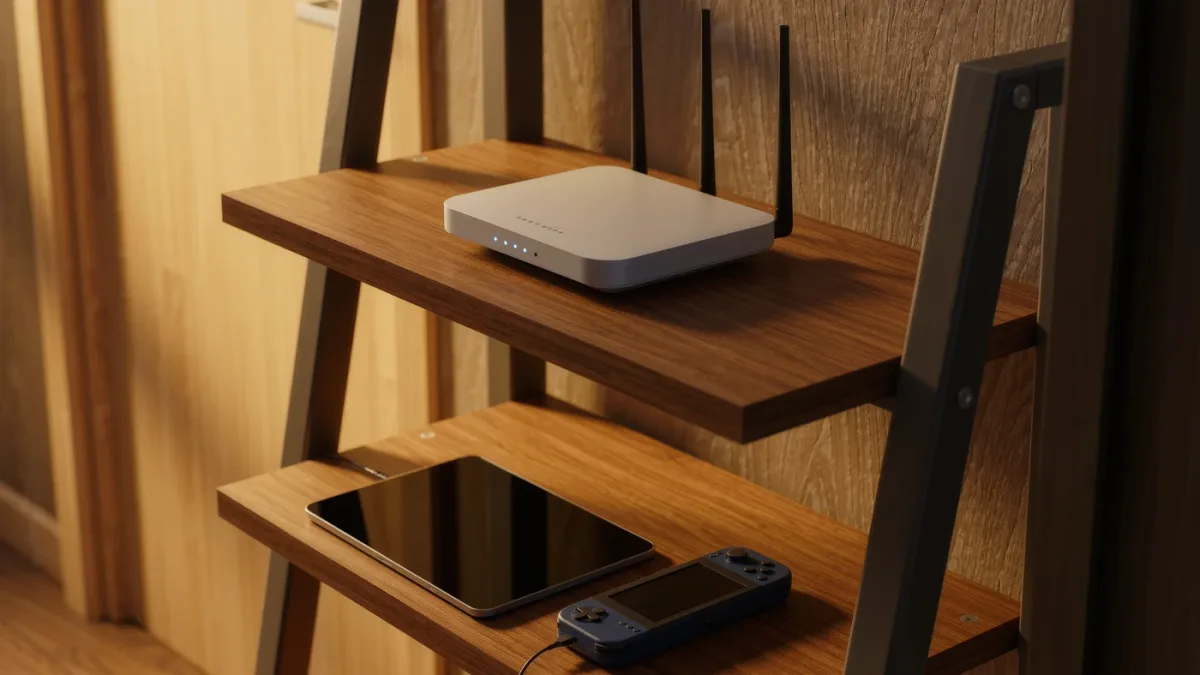
Router-level parental controls are the enforcement layer phones can't route around: device-specific bedtimes, content filtering and pause buttons, documented across every major router brand and mesh system. The pick of methods: assign each kid's device a profile in your router's app (TP-Link HomeShield, ASUS parental control, Eero, Google Home, Orbi all document them), set a school-night bedtime schedule, and enable basic content filtering. The catch: router controls manage connectivity, not what's inside apps — pair them with the on-device controls our family-media guide covers, because cellular data and friends' Wi-Fi don't pass your router.
What do router parental controls actually document?
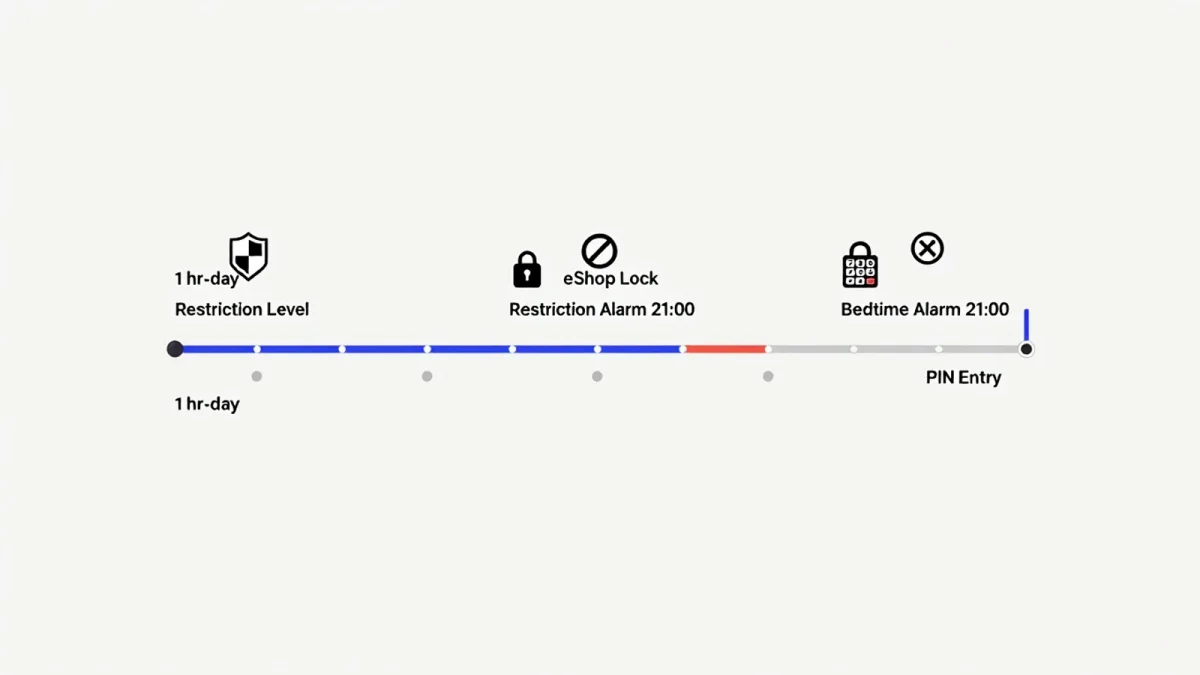
- Time limits and schedules: per-device internet-off windows — the bedtime enforcement that removes the nightly negotiation.
- Content filtering: DNS-based category blocking (adult content, gambling); effective and documented, but not surgical — expect occasional false positives.
- Pause internet: the dinner-table button; instant, per-device.
- Usage reports: hours per device per day — the conversation-starter data.
Setup, step by step
- Identify devices: open the router app's device list; rename each kid device as you find it ("Emma's iPad") — future rules attach to names, not MAC addresses you'll never read.
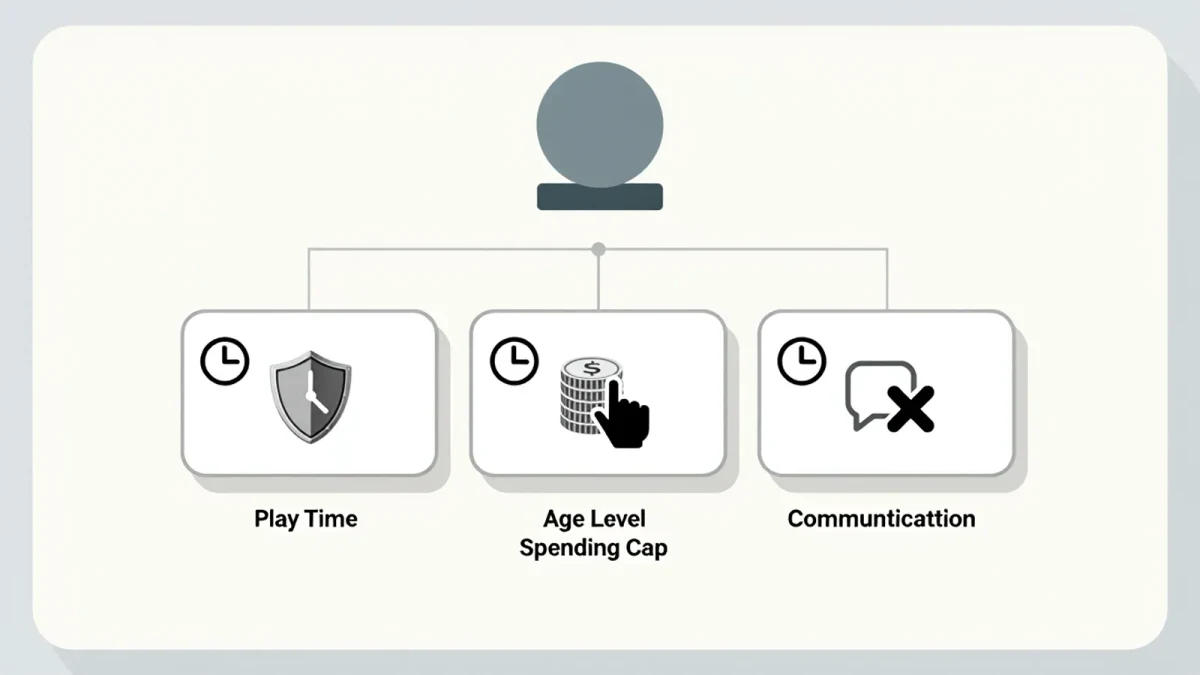
- Create profiles: group each kid's devices (phone, tablet, console) into one profile — the documented structure in every system above.
- Set schedules: school nights internet-off at a set hour, weekends later; leave room for renegotiation — plans that never flex get quietly defeated (see the workaround section).
- Enable filtering: the standard tier is enough to start; document what you blocked so a legit homework site can be unblocked without guesswork.
- Test from a controlled device: verify the schedule fires — the documented step every guide includes and everyone skips.
What are the documented gaps?
- Cellular data bypasses the router entirely — on-device controls (Screen Time, Family Link) are the layer that catches it.
- VPNs and DNS changes can defeat router filtering on devices smart enough to try — another reason for the on-device pairing.
- Consoles and smart TVs respect router schedules (they're on your Wi-Fi) but have their own parental settings worth configuring for game ratings.
What about privacy on the reporting side?
Usage reports show time and categories, not message contents — the documented scope. Some systems' advanced tiers add per-site history; decide deliberately whether your household's trust model needs it, and say so to the kids: secret monitoring that's discovered does more damage than any screen-time rule, a consistent theme in parenting guidance.
The verdict
Router profiles for the physics (bedtime, pause, filtering), on-device controls for the apps, conversation for everything else. Twenty minutes of setup buys the household's most-enforced rule — and unlike phone settings, the router never gets "forgotten" in a backpack.