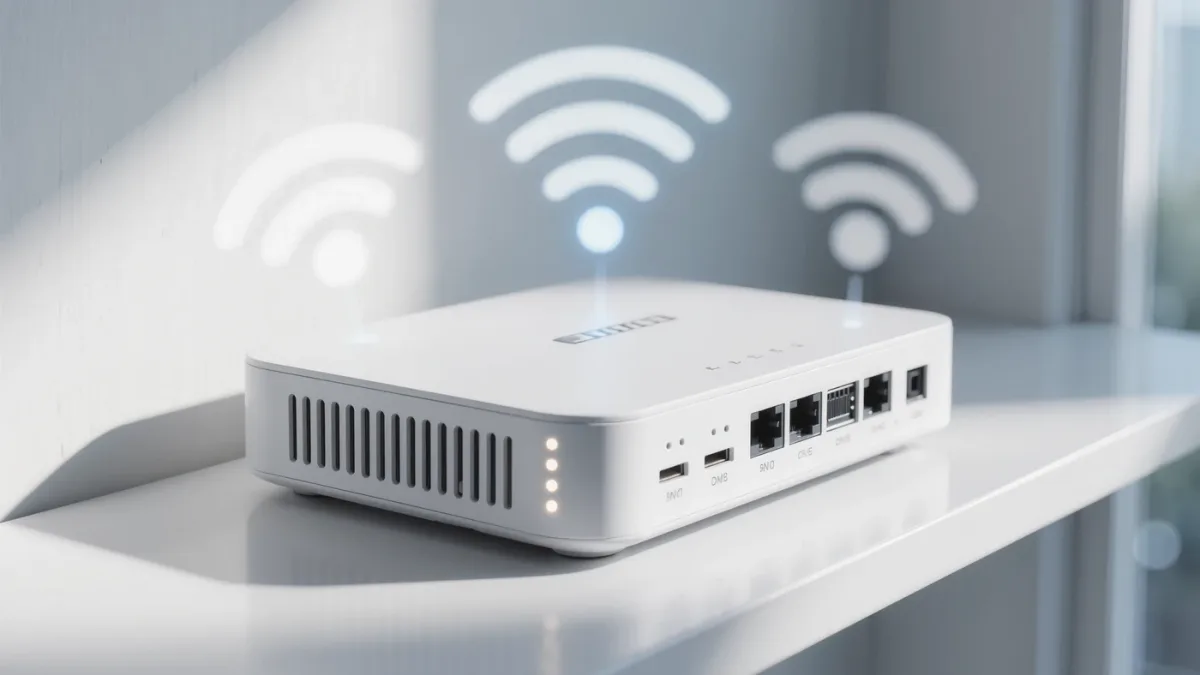
A guest network is a second Wi-Fi name on the same router, documented across every major brand, that connects devices to the internet but not to each other — visitors get online, and your laptops, printers, smart-home hubs and network storage stay invisible to them. Ten minutes to set up: router admin page (usually 192.168.0.1 or the maker's app) → Guest Network → name it, password it, enable client isolation. The catch: the best use isn't visitors — it's smart-home gadgets, the least-trusted devices most homes own.
Why put smart devices on guest Wi-Fi?
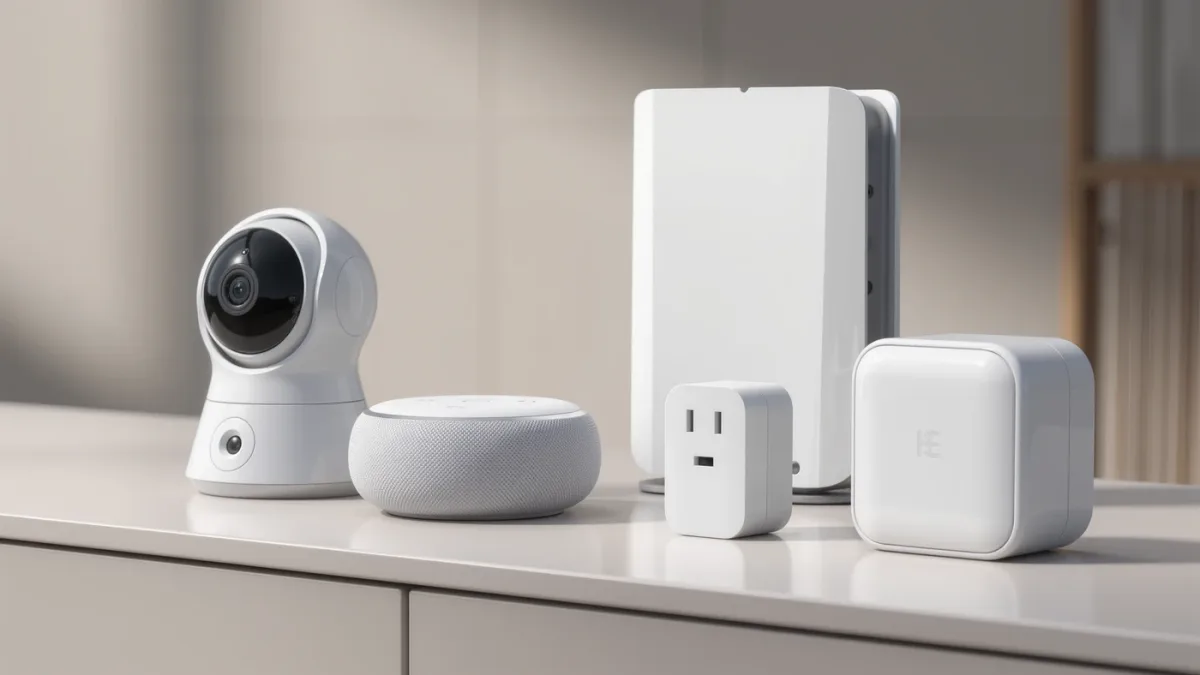
Every security agency's smart-home guidance documents the same architecture: untrusted devices (cameras, bulbs, plugs, TVs) get their own network segment so a compromised gadget can't reach your computers. A guest network is the consumer version of that segmentation — cameras can phone their clouds, but they can't scan your laptop's shared folders. Documented trade-offs first: some gadgets break when isolated (Chromecast discovery across networks, printers shared to guest devices), so test device-by-device and keep what needs cross-talk on the main network.
The setup steps
- Open the admin interface: browser to 192.168.0.1 / 192.168.1.1, or the vendor app (TP-Link, ASUS, Eero, Google Home all document guest networks there).
- Enable Guest Network (2.4GHz at minimum — most smart devices are 2.4GHz-only; some routers document a combined guest SSID).
- Name and password: something shareable for humans; a separate "smart-home" SSID (a second guest network on routers that document two) for gadgets.
- Enable AP/client isolation: the documented setting that prevents guest devices seeing each other and your LAN.
- Optional but recommended: a schedule or bandwidth cap for the human guest network where documented.
What about mesh systems?
Mesh makes it easier: Eero, Google Nest Wifi, Deco and Orbi all document guest networks as an app toggle with isolation built in — no admin pages. Some also document IoT-specific networks (Eero's and Alexa's documented smart-home segmentation), which formalizes the same idea. The test for any of them: from a guest-connected device, try to reach your printer's IP or a share — it should time out.
What are the documented failure modes?
- Isolation breaks casting: devices on guest Wi-Fi can't discover Chromecasts and AirPlay targets on the main network — the documented inconvenience; connect the phone doing the casting to the same network as the target.
- 2.4GHz-only gadgets refuse 5GHz guest SSIDs — use the router's documented band-combining or name only 2.4GHz for the IoT network.
- Guest network silently shares LAN on some old firmware — verify isolation after every firmware update; it's the documented setting that regresses.
The verdict
One guest SSID for people, one for gadgets where your router documents two, isolation on, tested after updates. It's the cheapest documented security upgrade in a home network — free, ten minutes, and it stays working while you forget it exists.