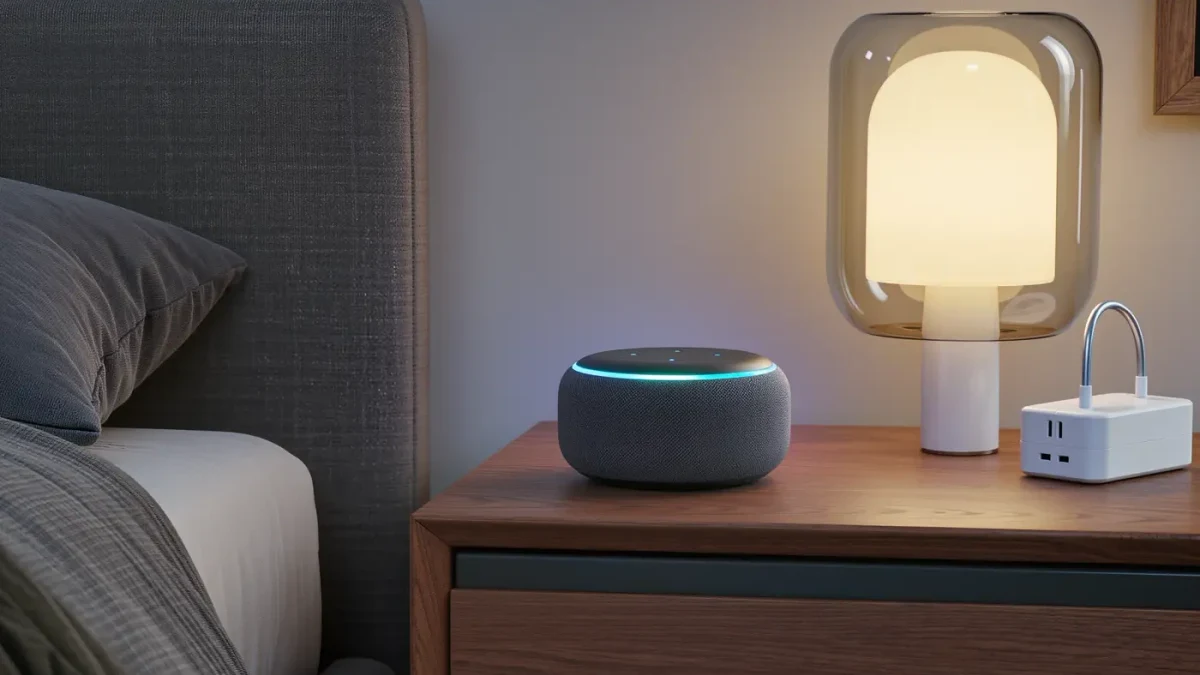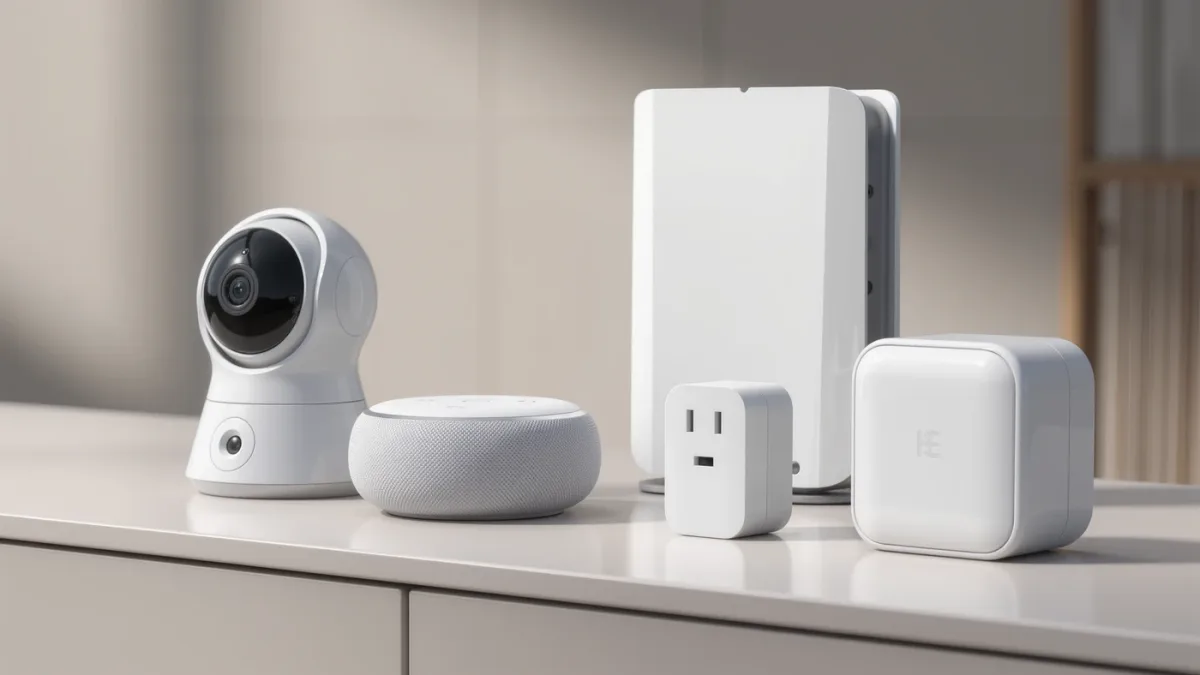
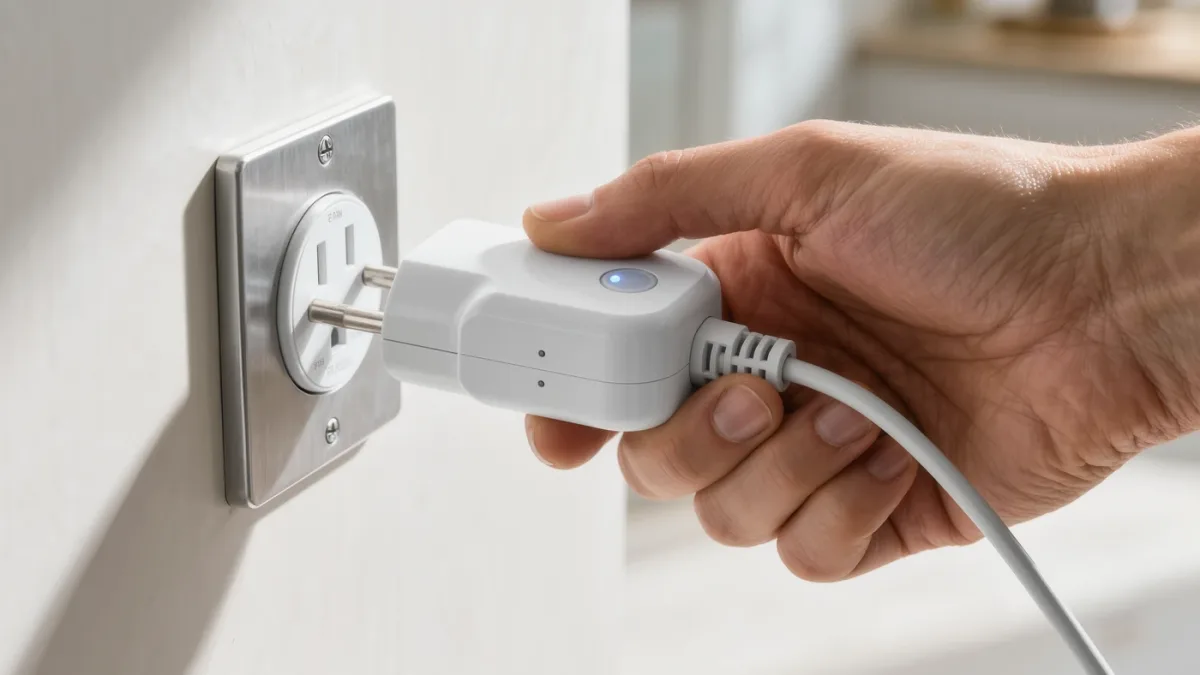
Work the ladder in order: signal, power, cloud, firmware — because it runs from most-likely and free to last-resort. Most offline devices document their status somewhere (app device page, or the LED pattern each maker's manual decodes), and that status tells you which rung you're on: "weak signal" means rung one, "unreachable" after a router change means rung three. The catch: chronic drop-offs usually aren't the device's fault — they're a router setting or a distance problem wearing a disguise.
Rung one — signal
- 2.4GHz reality: most smart devices are 2.4GHz-only, and it's the band routers de-prioritize; a device three rooms from the router on a band shared with microwaves and neighbors' networks documents exactly this failure.
- Router changes: a new router, renamed SSID, or "band steering" that merged your networks breaks credentials — devices remember the old network name. The documented fix: temporarily split 2.4/5GHz names during re-pairing, or re-onboard the device.
- Mesh dead zones: if the device sits where phones get one Wi-Fi bar, it's living there too — a plug or repeater between it and the nearest node is the documented structural fix.
Rung two — power
- Power-cycle the device (unplug 10 seconds) — the documented fix for 80 percent of ghosts, embarrassing frequency included.
- Battery devices: check the level in-app; low batteries document as intermittent dropouts before they document as dead.
- Don't skip the outlet: switched outlets, GFCI trips (garage, bathroom, outdoor) and power-strip switches eat hours of debugging — verify the outlet actually supplies power with a lamp.
Rung three — cloud and account
- Outages: every major platform documents a status page — check it before factory-resetting anything; a regional outage looks identical to a broken device.
- Account re-links: integrations (Alexa/Google connecting to a third-party cloud) expire or break on the vendor's side; removing and re-linking the skill is the documented repair.
- Network-level suspicion: if the device works on cellular-shared internet but not your Wi-Fi, it's your network: check that the router's isolation, firewall or "IoT protection" isn't quarantining it — a documented side effect of security features meeting chatty gadgets.
Rung four — firmware and reset
Update the device's firmware from its app — chronic bugs get patched constantly in this category. The factory reset is the last documented resort: it wipes the device back to setup mode, so capture its room/automation settings first; you'll re-onboard it like new. If a device documents offline behavior even after reset on a healthy network, it's the hardware — warranty claim, replacement.
The prevention list
- Keep smart devices on the router's main network, not isolated guest segments, unless chasing a security posture deliberately.
- Give battery devices scheduled battery checks; replace on schedule, not on failure.
- After every router change, budget 30 minutes for re-pairing stragglers — the documented post-migration ritual of every smart home.