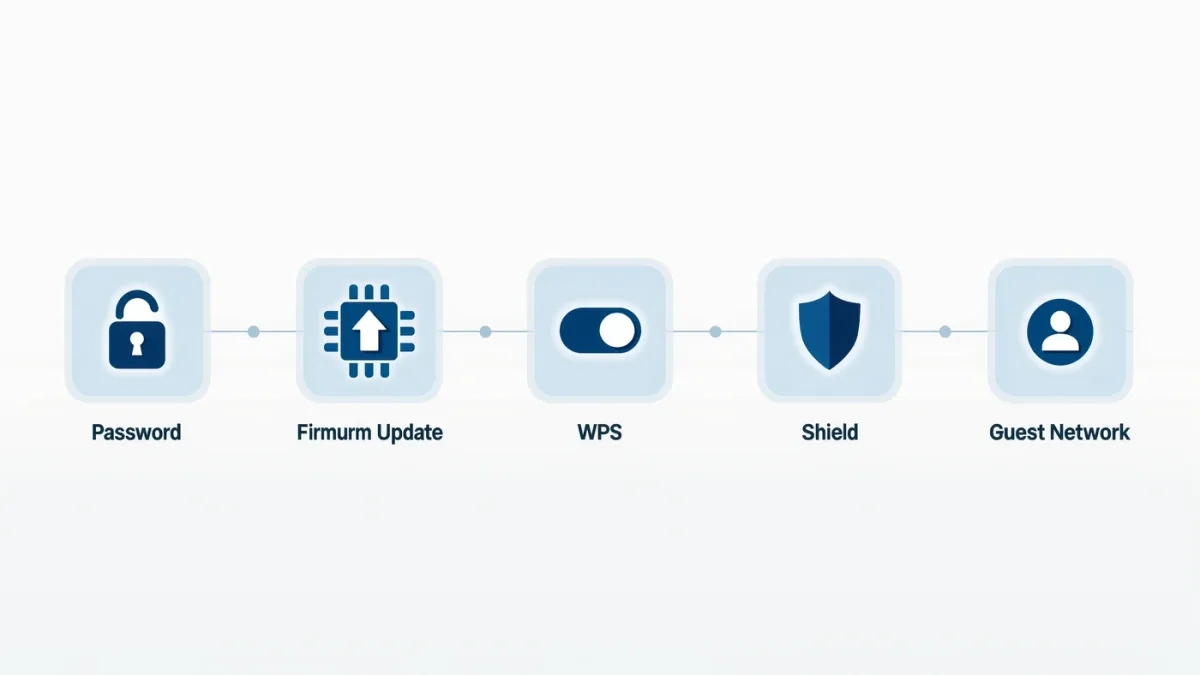
You can harden a home router in about 30 minutes with five moves: change the admin password, install current firmware, disable WPS, use WPA3 (or WPA2/WPA3 mixed), and set up a guest network for visitors and smart-home gear. The catch: every router brand buries these in a different admin-interface spot, and "set and forget" is the documented failure mode — routers need their firmware checked a few times a year.
Blog Daily publishes information, not security consulting — the steps below follow the Cybersecurity and Infrastructure Security Agency's public guidance on securing home routers and Wi-Fi networks.
Which settings matter, in order?
- Admin password: the factory default on many models is printed on the label — meaning anyone who learns the model knows the password. Change it first; it's separate from your Wi-Fi password.
- Firmware: look for a firmware-update button in the admin interface and press it now, then quarterly. Documented router botnets have all exploited old firmware.
- WPS off: the one-button pairing feature has documented design weaknesses (brute-forceable PIN); every security agency's guidance says disable it.
- WPA3 encryption (or WPA2/WPA3 transitional mode for older devices): never "WPA" or open networks. Set a Wi-Fi passphrase of three-plus random words.
- Guest network on: isolate visitors and IoT gadgets from your main network where your laptops and backups live.
Where are these settings?
- Router admin interface: usually 192.168.0.1 or 192.168.1.1 in a browser; newer mesh systems (Eero, Nest Wifi, Deco) move it into an app — the same settings live under "Security" or "Advanced."
- Admin password: Administration or System settings.
- Firmware: Administration → Firmware Upgrade (or automatic updates toggle — enable it if present, the documented low-effort win).
- WPS and WPA3: Wireless settings pages.
What about remote administration and UPnP?
Remote admin (managing the router from outside your home) should stay off unless you actively use it — it exposes the admin interface to the internet. UPnP lets devices open their own ports; games consoles want it, but documented botnet recruitment has used UPnP exposure. The balanced documented approach: leave UPnP on only if something you use needs it, and check the router's port list occasionally for entries you don't recognize.
What are the honest limits?
- Old routers stop getting firmware fixes — a model outside its support window can't be secured, only replaced. Check the maker's support page for your model's end-of-life date.
- WPA3 compatibility: mixed mode keeps old devices connected but drops network-wide protections while they're present — the documented trade of convenience for the weakest device.
- No home setting survives a reused password: the router admin password must be unique, like every important password.
The verdict
Thirty minutes, five settings, once — then a quarterly firmware check. What CISA's guidance also makes plain: if your router is years past firmware support, replacement ($60–150 for a current documented model) is the security fix, not a settings change.