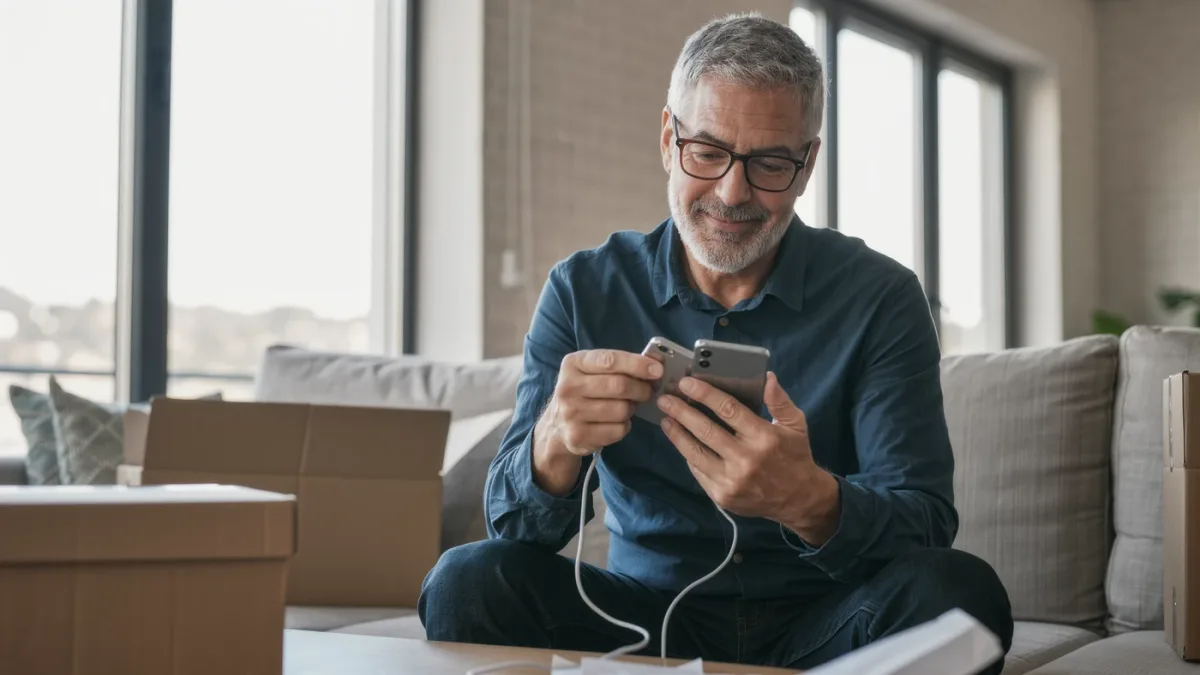
Yes, your old Android transfers almost everything to the new one with a cable and a few taps — Google's documented setup flow copies apps, photos, contacts, messages and most settings, and it works during initial setup or later from Settings. The catch: some data (authenticator apps, some banking apps, WhatsApp chat history without its own backup) does not move automatically, so do those manually before you wipe the old phone.
What transfers automatically?
Google documents that the copy process moves: installed apps from the Play Store (data for many of them), Google account and settings, contacts, calendar, photos and videos via Google Photos, SMS history, call history and device settings. Samsung documents the same for its Smart Switch tool, plus home-screen layouts on Galaxy-to-Galaxy moves. Plan on 15–30 minutes with a cable; wireless transfer is slower for large photo libraries.
Step-by-step: the transfer
- Charge both phones above roughly 50 percent and connect them with a USB-C cable (Samsung's Smart Switch also supports wireless).
- Power on the new phone. On the Wi-Fi screen, accept the copy-apps prompt, then confirm the pattern or screen lock from the old phone when asked.
- Choose "Copy apps and data," verify your Google account on the new phone, and check the listed data categories — leave everything on unless you deliberately want a fresh start.
- Wait for the progress bar to finish both phases (copy, then app install). Keep the phones touching or the cable connected until then.
- Sign in when prompted on the new phone; you'll re-enter passwords for some apps — that's normal security behavior, not a failed transfer.
What must you move manually?
- Authenticator apps: most (including Google Authenticator) require exporting accounts or transferring them within the app itself — do this before factory reset.
- WhatsApp: chat history moves through WhatsApp's own documented backup or device-transfer flow, not the system copy.
- Music and files stored locally: copy them to a computer or cloud drive first.
- Saved Wi-Fi passwords for networks saved outside your Google account: re-enter manually.
Which three settings should you change first?
- Find My Device: Settings → Google → Find My Device, on. It's the documented way to locate, ring or remotely erase a lost phone.
- Backup: Settings → Google → Backup, on. Google documents photos, settings and app data backing up daily on charge and Wi-Fi.
- Screen lock and auto-update: set a fingerprint plus a strong fallback PIN, and confirm Play Protect and automatic app updates are enabled in Play Store settings.
When should you set up as new instead?
If the old phone had problems you can't name — mysterious battery drain, odd pop-ups — a clean setup skips copying the cause. You'll still get contacts and calendar back from your Google account within minutes; you'll just reinstall apps by hand. That documented trade-off beats inheriting a ghost problem.
The last step: don't wipe yet
Use both phones for two or three days. When nothing is missing — banking logins, boarding passes, work apps, 2FA codes — then factory-reset the old one. Every migration guide says this because every migration occasionally skips something.