Set up app-based two-factor authentication (2FA) on your email first, then banking, then everything that stores a card — a strict order, because whoever controls your email can reset the passwords of everything else. The tool is a free authenticator app (Google Authenticator, Microsoft Authenticator, 2FAS, Aegis) generating 30-second codes; SMS codes work but are the documented weakest link, vulnerable to SIM-swap attacks that security agencies and carriers themselves warn about. The catch: 2FA's recovery path is its weak point — save backup codes or you'll lock yourself out.
Why an app instead of SMS?
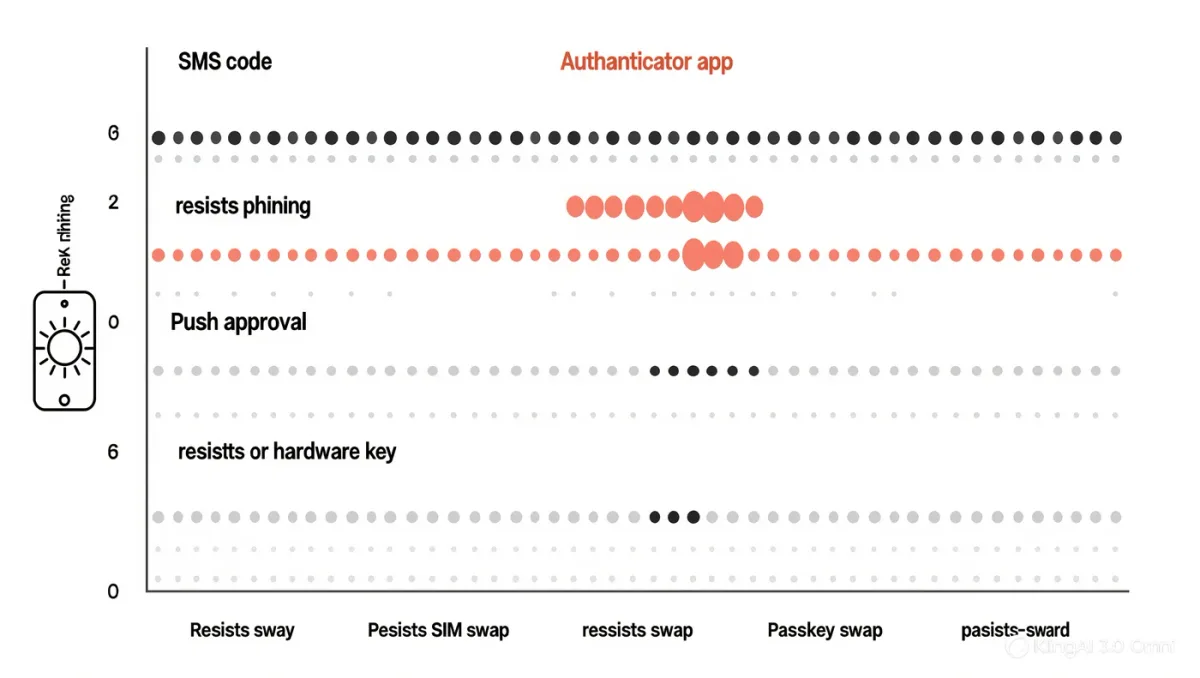
SMS codes travel through your phone number, and attackers document a well-worn path to stealing numbers: social-engineering the carrier into transferring your SIM ("SIM swapping"). NIST's digital-identity guidance has deprecated SMS as a preferred second factor. Authenticator apps generate codes on the device itself — nothing to intercept. Push-based approval (Microsoft Authenticator's "approve" prompts) adds speed; just never approve a prompt you didn't trigger.
What's the setup sequence?
- Choose one authenticator app and install it on your main phone. Google Authenticator documents cloud backup of codes tied to your Google account; 2FAS and Aegis document encrypted local backups — pick based on where you want the backup to live.
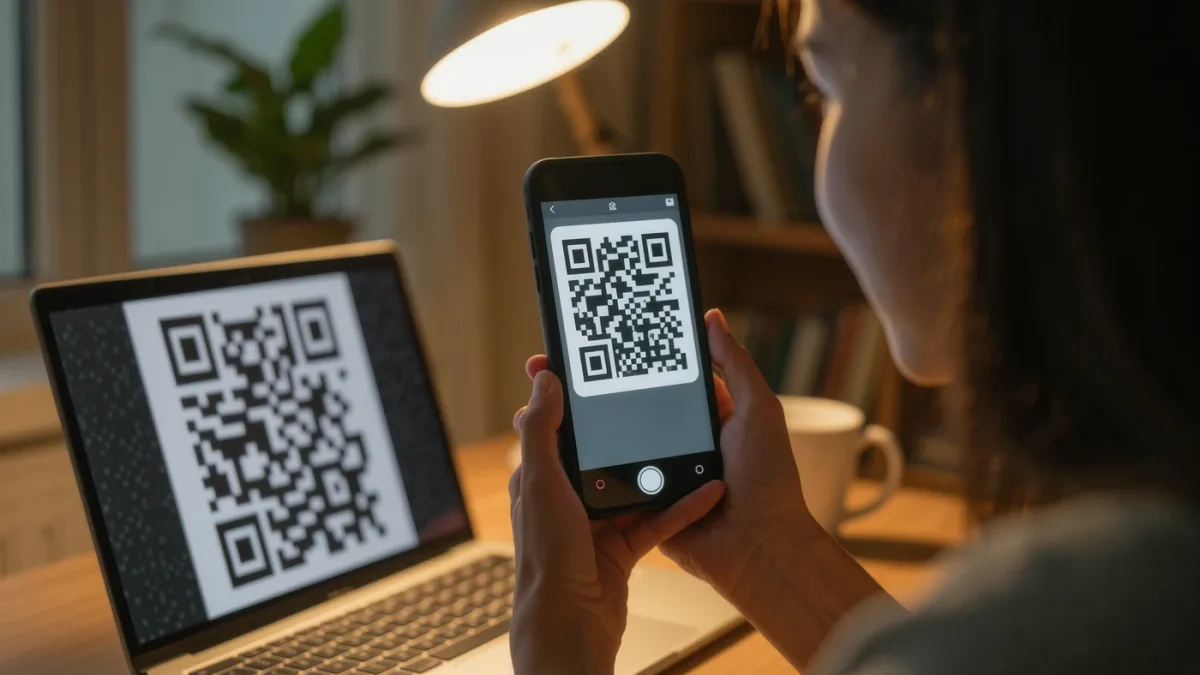
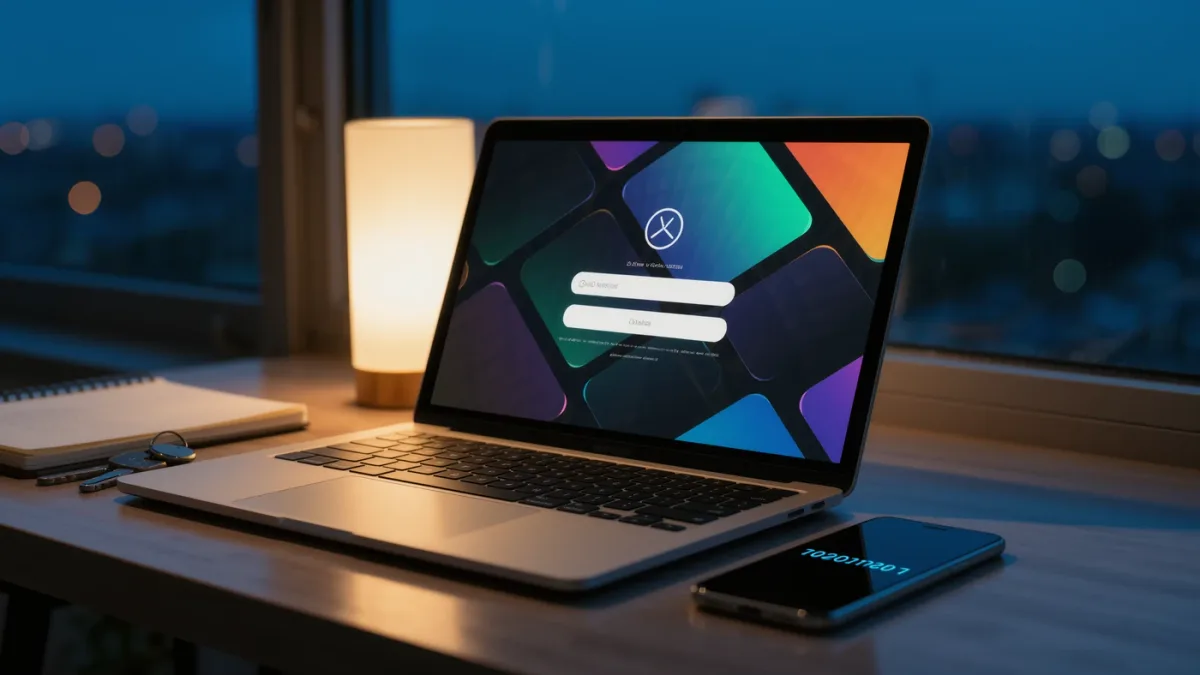
- Email account: in the account's security settings, find two-step verification, choose authenticator app, scan the displayed QR code with the app, enter the six-digit code to confirm. Save the backup codes shown next — printed or in your password manager.
- Banking and payment accounts: same flow; if the bank offers app-push approval, that's the smoothest documented option.
- Shopping and social: wherever a card or your identity lives. Work down the list; most major services document the same QR flow.
What do you do when you change phones?
Every authenticator documents its own migration: Google Authenticator exports accounts via QR to the new phone; 2FAS and Aegis restore from encrypted backup. Do the migration before wiping the old phone — this is the single most common documented lockout. Passkey adopters get a simpler world: passkeys sync through the platform (iCloud Keychain, Google Password Manager), so a new phone inherits them — our passkey setup guide covers that path.
What are the backup codes, really?
One-time codes that bypass 2FA entirely — the master key for "lost phone" day. Store them where a stolen phone can't reach: printed in a drawer, or in the password manager (which is itself 2FA-protected). Regenerate them after any use; services show how many remain.
What about hardware keys?
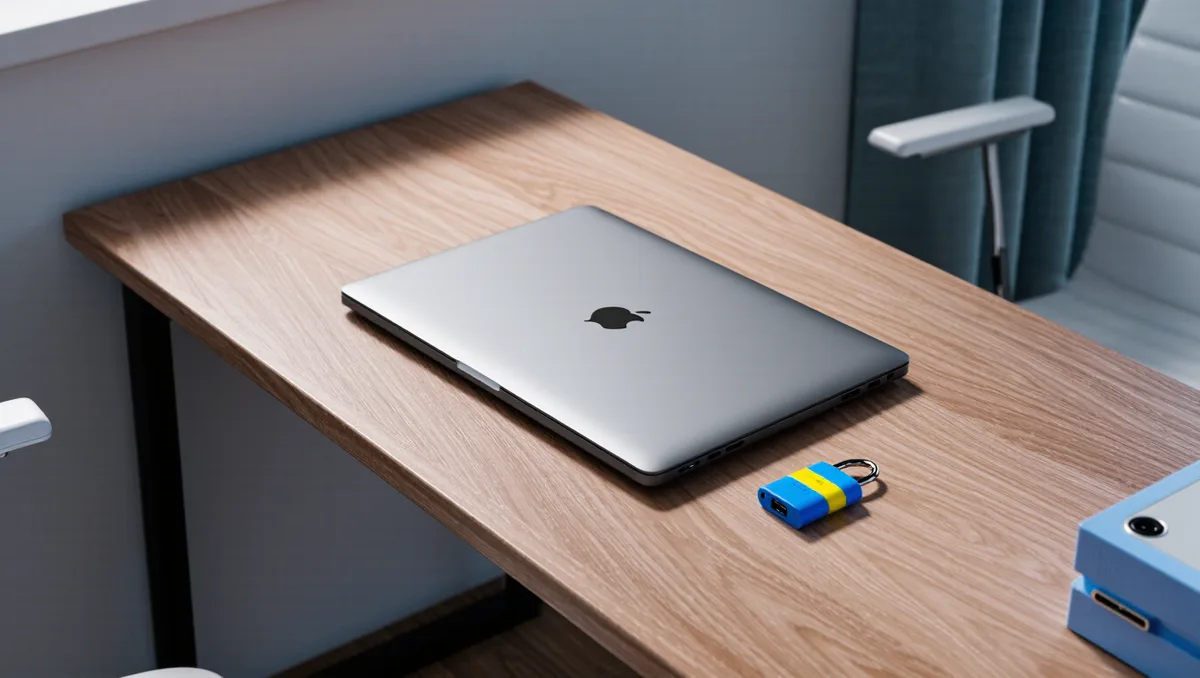
For the highest-value accounts, a hardware security key (YubiKey and similar, ~$25–60) documents phishing resistance that codes can't match — the code has to physically touch the device signing in. Google's own documentation credits keys with blunting phishing on its highest-risk users. Two keys, one on the keyring and one in a drawer, is the documented pattern; losing your only key is the documented disaster.
The verdict
One hour, one app, in order: email → banking → card-storing accounts. Save backup codes for each. It's the highest-leverage security hour available to a normal person — and the honest gap: 2FA protects logins, not the data a company holds about you.